A guide to conducting quantity takeoffs with Kamai
How to run a quantity takeoff in Kamai: upload drawings, extract areas, counts, and linear measures, then export to a BoQ.

A takeoff is where every estimate is won or lost. Get the wall lengths, door counts, and floor areas right and the rest of the bid follows. Get them wrong and you are chasing a number that was off before procurement ever saw it. For decades that meta was a roll of drawings, a scale rule, and a spreadsheet that grew until nobody trusted it. The slow part was never the arithmetic. It was reading the sheets, holding scale in your head, and not losing count across a 40-page set.
Kamai pulls those measurements off the drawing for you. You upload a plan set, Kamai's models read it, and you get back areas, counts, and linear quantities you can review and export. This guide walks the whole loop, from upload to a Bill of Quantities.
Start with the drawings you already have
Upload your plan set as-is. Kamai takes PDFs and scanned files, so a vendor-issued PDF or a scan of a marked-up print both work without conversion. A typical set mixes architectural, structural, and MEP sheets, and you can load them together.
The thing that usually eats an hour before any measuring starts - printing, collating, and re-checking sheet order against the index - you skip. Once the file is in, Kamai begins reading it.
What Kamai reads off the sheet
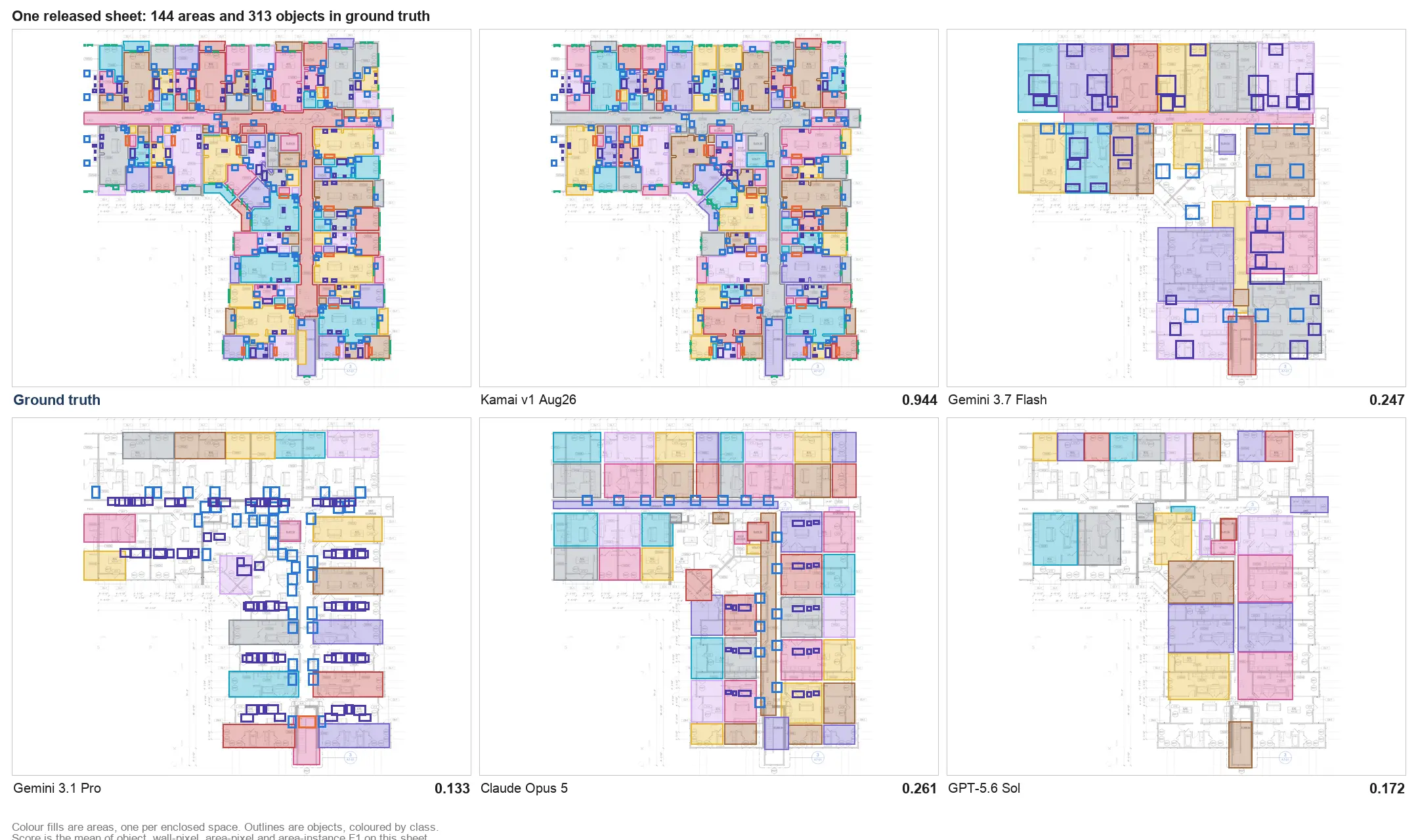
Kamai's models use computer vision to interpret the drawing rather than waiting for you to trace it. They pick out walls, rooms, openings, fixtures, and materials, and they hold the spatial relationships between them - which means a corridor reads as a corridor and a service room reads as a service room, not as a loose pile of line segments.
That distinction matters on real sheets. Two rooms sharing a wall should not both claim its full length, and a door schedule callout should map to the opening it belongs to. Reading zones, not just lines, is what keeps shared walls from getting double-counted.
Quantities, extracted
From that reading, Kamai produces the measurements a takeoff actually needs:
- Areas for flooring, walls, and finishes
- Linear dimensions for walls, piping, and ductwork
- Counts for doors, windows, fixtures, and other components
These come off the drawing's own scale, so there are no rulers to set and no per-sheet scaling to babysit - the step where a wrong scale setting quietly throws off every figure downstream.
Structured output, not loose numbers
A pile of raw measurements is only marginally better than no takeoff at all. Kamai returns the quantities as structured data you can actually work with, grouped by material type, room, floor level, or trade. The output is JSON under the hood, so it carries cleanly into other systems instead of living as numbers stranded in a notes column.
Because every quantity is tied back to where it came from on the drawing, you also get an audit trail. When a PM asks why the drywall figure looks high, you can trace it to the sheet and the elements behind it.
Review before you trust it
Automation does not remove the review step, and you should not want it to. What it changes is what review looks like. Instead of re-measuring every dimension by hand, you check Kamai's detected elements against the sheet - the highlighted walls, the counted openings - and confirm the areas that drive cost.
This is also where you catch the things only a person knows: a scope note on the cover sheet, an addendum that moved a partition, a finish that changed in a later revision. Spend the review time there, not on re-running arithmetic.
From takeoff to BoQ
When the numbers check out, export them. Kamai writes the data to structured formats - spreadsheets and reports - that drop straight into a Bill of Quantities or a cost estimate, or feed your estimating and project-management systems. Since the data is already categorized, there is no retyping and no reformatting between the takeoff and the estimate.
When the drawings change, and they will, you re-run the affected sheets and pull fresh quantities rather than redlining a spreadsheet by hand. That is the difference that lets you turn around a revised bid in time.
Ask the takeoff questions
The data is structured, so you can interrogate it. Kamai's in-app assistant lets you ask things like which rooms carry a given finish or how a quantity totals across floors, and compare material options without rebuilding the sheet by hand. The estimator's time moves off collecting numbers and onto deciding what to do with them.
What you actually get out of it
A few things are worth stating plainly:
- No manual measuring. Areas, counts, and linear quantities come off the drawing, so the scale rule and the running tally go away.
- Minutes, not days. A set that took most of a day to measure by hand reads in minutes, which is what makes a tight bid deadline workable.
- Consistent across projects. The same set of drawings produces the same quantities every time, so estimates do not drift with whoever ran the takeoff.
- Shareable data. Structured output moves between estimators, PMs, and field teams without anyone re-keying it.
- A traceable record. Every quantity points back to the drawing it came from, which is what you want when a client or a PM questions a figure.
The honest version of the change
The old way produced accurate takeoffs in the hands of a good estimator. It just did not scale, and the effort was spent in the wrong place - measuring and counting rather than judging scope and risk. Kamai takes the measuring off your plate so an estimator can run more bids without working more hours, and spend the time saved on the calls that actually need experience: reading the addenda, weighing alternates, and deciding which jobs are worth chasing.
Get the next post in your inbox.
Low frequency. High signal.